Tic Tac Toe in JavaScript: Minimax AI + Full Code
Tic tac toe is the best first game to build if you want to learn how a real game works. The rules fit in one sentence, the board is only nine squares, and yet making it well teaches you the ideas behind almost every game: keeping the game state in one place, reacting to clicks, checking for a winner, remembering scores, and giving the computer a brain. In this tutorial you will build a complete tic tac toe game in JavaScript with plain HTML, CSS and JavaScript, no libraries and no images, and you will finish with a computer opponent that can never lose.
You can type along in the free WSNCode online code editor, or open the finished game with one click from the Try It Live button further down. Two parts of this tutorial are often skipped by other guides, so pay extra attention to them: the minimax algorithm that makes the computer unbeatable (explained slowly, with real numbers) and keyboard accessibility, so the game also works without a mouse.
What You'll Build
This is a small but complete JavaScript game for beginners. The finished game has:
- A 3 × 3 board made with CSS grid that shrinks to fit a phone screen.
- A turn indicator and a status line that always says what is happening.
- A win check for all 8 winning lines, with the winning squares highlighted.
- A draw check that handles the case where the last move wins.
- Score tracking saved in
localStorage, so your scores are still there tomorrow. - A restart button that is safe to press at any moment, and a mode button for one or two players.
- An unbeatable computer opponent built with the minimax algorithm.
- Keyboard support: Tab to the board, arrow keys to move, Enter or Space to play.
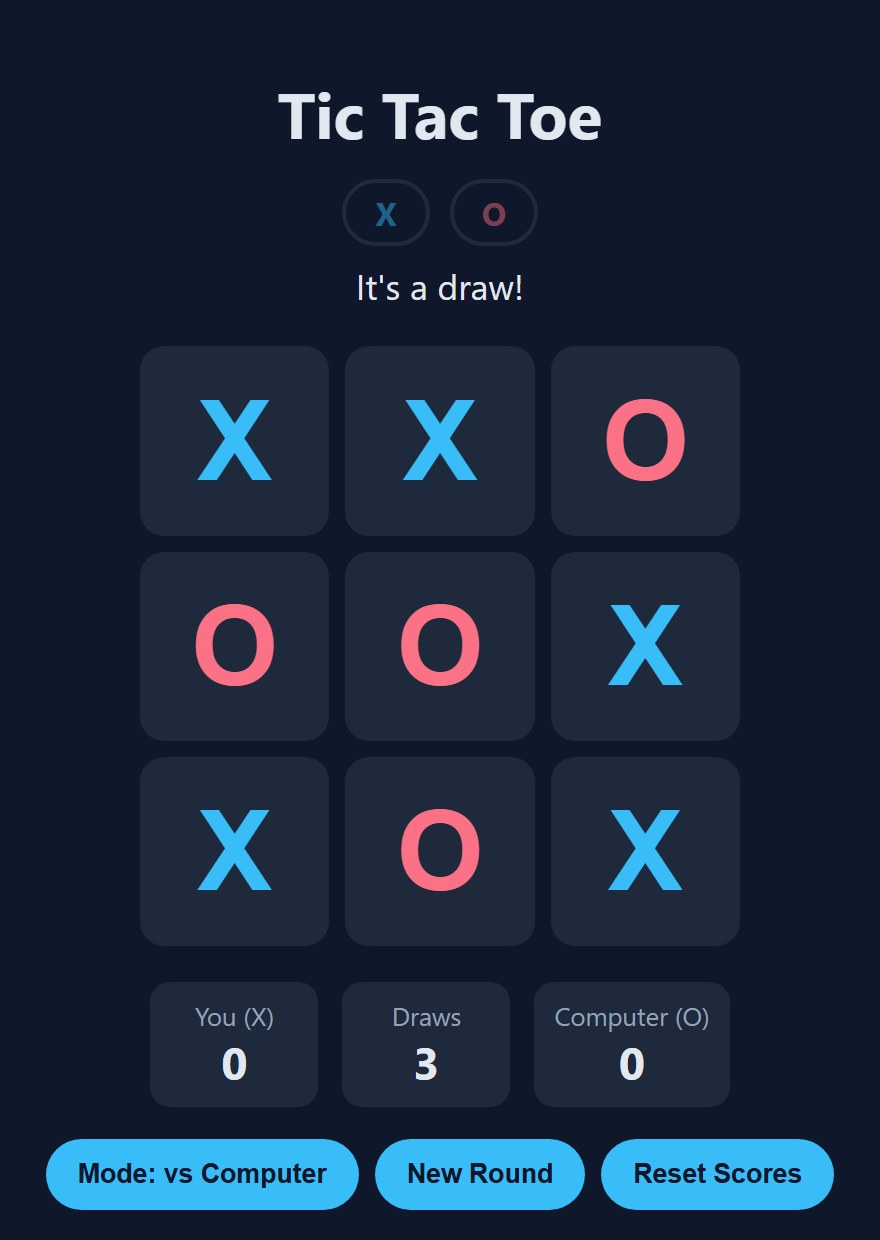
The whole game is about 240 lines of plain JavaScript, with about 30 lines of HTML and 80 lines of CSS.
Where the Idea Comes From: Tic Tac Toe on WSNCode
This post grew out of a small project I first made and published on WSNCode myself. You can play my original Tic tac toe project here, open the View Code button to read its source, and fork it into the editor. It is a two-player game with a neon look, a pop animation for every new mark, a highlight on the winning squares, sound effects made with the Web Audio API, and a restart button. It has no computer opponent and no score, and its squares are <div> elements, so a keyboard cannot reach them.
The version in this tutorial is a clean rewrite with the same rules and a different goal: a short, readable program that teaches the important ideas. It uses real buttons, keeps the logic in small functions, and adds scores, a minimax opponent and keyboard play. If you like game tutorials, the same series also covers the Snake game, the Flappy Bird game and the Word Scramble game.
How the Game Works
A tic tac toe game needs to remember only three things: what is in each of the nine squares, whose turn it is, and whether the game is over. Everything you see on the screen is just a picture of that information. We keep the squares in one array of nine items, numbered 0 to 8 from left to right and top to bottom:
0 | 1 | 2
---------
3 | 4 | 5
---------
6 | 7 | 8
Every click then follows the same path: read the square, ignore the click if it is not allowed, place the mark, check for a winner, check for a draw, and switch players. When it is the computer's turn, the same path runs again, except that a function chooses the square instead of a click. Keep this order in mind, because every step below is one piece of it. If you built the Snake game in JavaScript before, notice the difference: Snake runs in a loop that never stops, while tic tac toe only changes when somebody makes a move.
Step 1: The HTML Board
Many tic tac toe in HTML, CSS and JavaScript tutorials build the board from nine <div> elements. We use nine <button> elements instead. A button can be reached with the Tab key, pressed with Enter or Space, and announced by a screen reader, and you get all of that for free. Each button has a data-index attribute with its number (0 to 8) so that JavaScript knows which square was clicked, and an aria-label such as “Row 1, column 1, empty” because an empty button has no text for a screen reader to read.
The rest of the page is small: two pills for the turn indicator (hidden from screen readers with aria-hidden, because the status line says the same thing in words), a status paragraph with role="status" so that changes are announced, the score board, and three buttons. New to HTML? Read HTML, CSS and JavaScript Explained first.
<main class="game">
  <h1>Tic Tac Toe</h1>

  <div class="turns" aria-hidden="true">
    <span id="turn-x" class="turn x">X</span>
    <span id="turn-o" class="turn o">O</span>
  </div>
  <p id="status" role="status">Your turn: X</p>

  <div id="board" class="board" role="group"
       aria-label="Tic tac toe board. Use the arrow keys to move between squares.">
    <button class="cell" data-index="0" aria-label="Row 1, column 1, empty"></button>
    <button class="cell" data-index="1" aria-label="Row 1, column 2, empty"></button>
    <button class="cell" data-index="2" aria-label="Row 1, column 3, empty"></button>
    <button class="cell" data-index="3" aria-label="Row 2, column 1, empty"></button>
    <button class="cell" data-index="4" aria-label="Row 2, column 2, empty"></button>
    <button class="cell" data-index="5" aria-label="Row 2, column 3, empty"></button>
    <button class="cell" data-index="6" aria-label="Row 3, column 1, empty"></button>
    <button class="cell" data-index="7" aria-label="Row 3, column 2, empty"></button>
    <button class="cell" data-index="8" aria-label="Row 3, column 3, empty"></button>
  </div>

  <div class="scores">
    <div><span id="label-x">You (X)</span><strong id="score-x">0</strong></div>
    <div><span>Draws</span><strong id="score-draws">0</strong></div>
    <div><span id="label-o">Computer (O)</span><strong id="score-o">0</strong></div>
  </div>

  <div class="controls">
    <button id="mode" type="button">Mode: vs Computer</button>
    <button id="restart" type="button">New Round</button>
    <button id="reset-scores" type="button">Reset Scores</button>
  </div>
</main>
Step 2: CSS Grid Styling
The board is a CSS grid. The line grid-template-columns: repeat(3, 1fr) creates three equal columns, and the nine buttons flow into three rows by themselves. gap: 8px puts space between the squares, and aspect-ratio: 1 keeps every square a perfect square at any size.
The board width is min(300px, 86vw), which means “300 pixels, or 86% of the screen width if the screen is narrower”. That one line makes the game work on a small phone, and clamp() in the font size shrinks the X and O marks with the board. JavaScript will add the classes .x, .o, .win and .active later; the CSS already knows what to do with them. One rule is easy to forget and very important: button:focus-visible draws a thick yellow outline, so keyboard users can always see which square is selected. If you want to learn more about layout, read our CSS Flexbox guide next.
* { box-sizing: border-box; }

body {
  margin: 0;
  min-height: 100vh;
  display: grid;
  place-items: center;
  background: #0f172a;
  color: #e2e8f0;
  font-family: system-ui, "Segoe UI", sans-serif;
}

.game { text-align: center; padding: 16px; }
h1 { margin: 0 0 12px; font-size: 2rem; }
#status { min-height: 1.5em; margin: 8px 0 16px; font-size: 1.1rem; }

/* Turn indicator */
.turns { display: flex; gap: 10px; justify-content: center; }
.turn {
  width: 44px;
  padding: 4px 0;
  border-radius: 999px;
  border: 2px solid #334155;
  font-weight: 700;
  opacity: 0.45;
}
.turn.x { color: #38bdf8; }
.turn.o { color: #fb7185; }
.turn.active { opacity: 1; border-color: currentColor; }

/* Board */
.board {
  display: grid;
  grid-template-columns: repeat(3, 1fr);
  gap: 8px;
  width: min(300px, 86vw);
  margin: 0 auto;
}

.cell {
  aspect-ratio: 1;
  border: 0;
  border-radius: 12px;
  background: #1e293b;
  color: #e2e8f0;
  font-size: clamp(2rem, 14vw, 3.5rem);
  font-weight: 700;
  cursor: pointer;
}
.cell:hover:not([aria-disabled="true"]) { background: #334155; }
.cell[aria-disabled="true"] { cursor: default; }
.cell.x { color: #38bdf8; }
.cell.o { color: #fb7185; }
.cell.win { background: #166534; }

/* Keyboard focus must always be visible */
button:focus-visible { outline: 3px solid #facc15; outline-offset: 2px; }

/* Scores */
.scores { display: flex; gap: 12px; justify-content: center; margin-top: 18px; }
.scores div {
  min-width: 84px;
  padding: 8px 10px;
  border-radius: 10px;
  background: #1e293b;
}
.scores span { display: block; font-size: 0.8rem; color: #94a3b8; }
.scores strong { font-size: 1.4rem; }

/* Buttons */
.controls { margin-top: 16px; display: flex; gap: 8px; justify-content: center; flex-wrap: wrap; }
.controls button {
  padding: 10px 16px;
  border: 0;
  border-radius: 999px;
  background: #38bdf8;
  color: #0f172a;
  font-weight: 700;
  cursor: pointer;
}
.controls button:hover { background: #7dd3fc; }
Step 3: Game State
Now the JavaScript. We grab the elements we need once, at the top, and then create the game state. squares is the array of nine items, each one 'X', 'O' or an empty string. current is the player whose turn it is, gameOver stops the game after a win or a draw, and vsComputer says whether the computer plays O. WIN_LINES lists the eight ways to win: three rows, three columns and two diagonals, each written as three square numbers. computerTimer will hold the id of the computer's pending move, and you will see in Step 9 why that matters.
// ===== Elements
const cells = Array.from(document.querySelectorAll('.cell'));
const boardEl = document.getElementById('board');
const statusEl = document.getElementById('status');
const turnX = document.getElementById('turn-x');
const turnO = document.getElementById('turn-o');
const modeBtn = document.getElementById('mode');
const restartBtn = document.getElementById('restart');
const resetScoresBtn = document.getElementById('reset-scores');

// ===== Game state
const WIN_LINES = [
  [0, 1, 2], [3, 4, 5], [6, 7, 8], // rows
  [0, 3, 6], [1, 4, 7], [2, 5, 8], // columns
  [0, 4, 8], [2, 4, 6],            // diagonals
];

let squares;                // 9 items: 'X', 'O' or ''
let current;                // whose turn it is: 'X' or 'O'
let gameOver;
let vsComputer = true;      // you are X, the computer is O
let computerTimer = null;   // id of the pending computer move
Step 4: Click Handling
The click handler is short. It reads the square number from data-index and then returns early in three cases: the game is over, the square is already taken, or it is the computer's turn. These early returns are called guard clauses. They are the reason you cannot cheat by clicking a used square, or by clicking while the computer is thinking. If every check passes, makeMove does the real work, which you will write in Step 7.
Notice that we do not use the disabled attribute on the squares. A disabled button cannot be focused, so a keyboard user would lose their place on the board after every move. We use aria-disabled instead, which keeps the button focusable and still tells screen readers that it is not available.
// ===== Click handling
function handleCellClick(event) {
  const index = Number(event.currentTarget.dataset.index);
  if (gameOver || squares[index] !== '') return;
  if (vsComputer && current !== 'X') return; // wait for the computer
  makeMove(index);
}
Step 5: The Win Check (8 Winning Lines)
How do you know if somebody has won? You do not need clever maths. Look at each of the eight lines and ask: are the three squares on this line the same, and not empty? That is the whole algorithm.
The function getWinner loops over WIN_LINES and uses array destructuring, [a, b, c], to read the three numbers of each line. The test board[a] && board[a] === board[b] && board[a] === board[c] is true only when square a is not empty and all three squares match. The function returns the player and the line, so we can highlight the winning squares later, or null if there is no winner. It takes the board as a parameter instead of reading the global squares, and that small decision pays off in Step 10, because the computer will check imaginary boards with the very same function.
// ===== Win and draw checks
function getWinner(board) {
  for (const [a, b, c] of WIN_LINES) {
    if (board[a] && board[a] === board[b] && board[a] === board[c]) {
      return { player: board[a], line: [a, b, c] };
    }
  }
  return null;
}
Step 6: The Draw Check
A game is a draw when every square is full and there is no winner. The order matters: always check for a winner first, because a player can win with the very last move, and that game is not a draw. isDraw uses every() to ask whether all nine squares are non-empty. If you want to understand every, filter and map better, see JavaScript Array Methods Explained for Beginners.
function isDraw(board) {
  return board.every(square => square !== '');
}
Step 7: Making a Move and the Turn Indicator
Four small helpers keep the screen honest. setStatus writes the message. turnText decides what the message should say, which depends on the mode. showTurn is the turn indicator: it turns the active class on for the pill of the player whose turn it is, and off for the other, and it turns both off when the game is over. describeCell builds the spoken label of a square, such as “Row 2, column 3, X”.
// ===== Showing the game
function setStatus(text) {
  statusEl.textContent = text;
}

function turnText() {
  if (!vsComputer) return `Player ${current}'s turn`;
  return current === 'X' ? 'Your turn: X' : 'Computer is thinking...';
}

function showTurn() {
  turnX.classList.toggle('active', !gameOver && current === 'X');
  turnO.classList.toggle('active', !gameOver && current === 'O');
}

function describeCell(index) {
  const row = Math.floor(index / 3) + 1;
  const col = (index % 3) + 1;
  return `Row ${row}, column ${col}, ${squares[index] || 'empty'}`;
}
makeMove is the heart of the game. It puts the current player's mark in the array and on the screen, marks the square as taken, and then runs the two checks in the right order: winner first, draw second. If the game goes on, the turn passes to the other player and the indicator updates. If the next player is the computer, a short setTimeout gives it a moment to “think” before it answers, which feels much more natural than an instant reply. endGame locks the board, highlights the winning line and shows the result.
// ===== Playing a move
function endGame(winner) {
  gameOver = true;
  cells.forEach(cell => cell.setAttribute('aria-disabled', 'true'));

  const mode = vsComputer ? scores.ai : scores.two;
  if (winner) {
    winner.line.forEach(i => cells[i].classList.add('win'));
    mode[winner.player]++;
    if (vsComputer) setStatus(winner.player === 'X' ? 'You win!' : 'Computer wins!');
    else setStatus(`Player ${winner.player} wins!`);
  } else {
    mode.draws++;
    setStatus("It's a draw!");
  }
  saveScores();
  renderScores();
  showTurn();
}

function makeMove(index) {
  squares[index] = current;
  cells[index].textContent = current;
  cells[index].classList.add(current.toLowerCase());
  cells[index].setAttribute('aria-disabled', 'true');
  cells[index].setAttribute('aria-label', describeCell(index));

  const winner = getWinner(squares);
  if (winner) return endGame(winner);
  if (isDraw(squares)) return endGame(null);

  current = current === 'X' ? 'O' : 'X';
  setStatus(turnText());
  showTurn();

  if (vsComputer && current === 'O') {
    computerTimer = setTimeout(() => {
      computerTimer = null;
      makeMove(pickComputerMove(squares));
    }, 400);
  }
}
Step 8: Score Tracking with localStorage
A score that disappears when you close the tab is not much fun, so we save it in localStorage. The scores live in one object with two sections, one for the computer mode (ai) and one for the two-player mode (two), and each section counts wins for X, wins for O and draws. endGame from Step 7 adds one to the right counter and calls saveScores.
Two details make this code safe. First, both loadScores and saveScores are wrapped in try/catch. Browsers can block storage, for example in private windows or in sandboxed iframes, and a blocked localStorage would otherwise crash the game on the first line. With the try/catch, the game still works and the scores simply start from zero. Second, loadScores never trusts what it reads: it checks that every value is a positive finite number and replaces anything else with zero. Data in localStorage can be edited by the user or left behind by an older version of your code, so treat it like any other input.
// ===== Scores saved in localStorage
const SCORE_KEY = 'tictactoe-scores-v1';

function emptyScores() {
  return {
    ai:  { X: 0, O: 0, draws: 0 },
    two: { X: 0, O: 0, draws: 0 },
  };
}

function loadScores() {
  try {
    const saved = JSON.parse(localStorage.getItem(SCORE_KEY));
    const result = emptyScores();
    for (const mode of ['ai', 'two']) {
      for (const key of ['X', 'O', 'draws']) {
        const n = Number(saved && saved[mode] && saved[mode][key]);
        if (Number.isFinite(n) && n > 0) result[mode][key] = Math.floor(n);
      }
    }
    return result;
  } catch (err) {
    return emptyScores();   // nothing saved yet, bad data, or storage is blocked
  }
}

function saveScores() {
  try {
    localStorage.setItem(SCORE_KEY, JSON.stringify(scores));
  } catch (err) {
    // ignore: the scores just won't survive a reload
  }
}

let scores = loadScores();

function renderScores() {
  const mode = vsComputer ? scores.ai : scores.two;
  document.getElementById('label-x').textContent = vsComputer ? 'You (X)' : 'Player X';
  document.getElementById('label-o').textContent = vsComputer ? 'Computer (O)' : 'Player O';
  document.getElementById('score-x').textContent = mode.X;
  document.getElementById('score-o').textContent = mode.O;
  document.getElementById('score-draws').textContent = mode.draws;
}
Step 9: Restart and Game Modes
The restart button calls startGame, which makes a fresh array of nine empty strings, sets X as the current player, and resets every square. One line in it is easy to miss and very important: clearTimeout(computerTimer). The computer waits a moment before it moves. If you press New Round during that pause and the timer is not cancelled, the old move would still fire and put an O on your brand-new board. The mode button flips vsComputer between true and false, refreshes the score labels and starts a new round, and the last button resets the scores of the current mode.
// ===== Start, restart and mode
function startGame() {
  clearTimeout(computerTimer); // a new round must cancel a pending computer move
  computerTimer = null;
  squares = Array(9).fill('');
  current = 'X';
  gameOver = false;
  cells.forEach((cell, i) => {
    cell.textContent = '';
    cell.className = 'cell';
    cell.removeAttribute('aria-disabled');
    cell.setAttribute('aria-label', describeCell(i));
  });
  setStatus(turnText());
  showTurn();
}

function toggleMode() {
  vsComputer = !vsComputer;
  modeBtn.textContent = vsComputer ? 'Mode: vs Computer' : 'Mode: 2 Players';
  renderScores();
  startGame();
}

function resetScores() {
  scores[vsComputer ? 'ai' : 'two'] = { X: 0, O: 0, draws: 0 };
  saveScores();
  renderScores();
}

cells.forEach(cell => cell.addEventListener('click', handleCellClick));
boardEl.addEventListener('keydown', handleBoardKeydown);
restartBtn.addEventListener('click', startGame);
modeBtn.addEventListener('click', toggleMode);
resetScoresBtn.addEventListener('click', resetScores);
renderScores();
startGame();
Step 10: An Unbeatable Opponent with Minimax
Now for the best part. A tic tac toe minimax JavaScript opponent is a function that looks at every way the game could continue and picks the move with the best guaranteed result. Minimax is based on two simple ideas:
- The computer (O) wants the highest score. It is the “max” player.
- You (X) want the lowest score. You are the “min” player, and the computer assumes that you will always play your best move.
The function minimax(board, player, depth) works like this. First it checks whether the position is finished: an O win scores 10 - depth, an X win scores depth - 10, and a draw scores 0. Subtracting the depth means that a quick win is worth more than a slow one, and a slow loss is better than a quick one, so the computer finishes you off as fast as it can and drags out the games it cannot win. If the position is not finished, the function tries every empty square: it places the mark, calls itself for the other player (this is recursion), and then undoes the move. At the end it returns the best score for whoever is playing: the highest for O, the lowest for X.
pickComputerMove is the outer loop. It tries each empty square as an O move, asks minimax how good the result is, and keeps the square with the highest score. It works on a copy of the board, so the real board is never changed while the computer is thinking.
// ===== Unbeatable computer opponent (minimax)
// Scores a position from the computer's point of view (the computer is O):
// a faster win is worth more, a slower loss is worth less than a quick one.
function minimax(board, player, depth) {
  const winner = getWinner(board);
  if (winner) return winner.player === 'O' ? 10 - depth : depth - 10;
  if (isDraw(board)) return 0;

  const results = [];
  for (let i = 0; i < 9; i++) {
    if (board[i] !== '') continue;
    board[i] = player;                                   // try the move...
    results.push(minimax(board, player === 'O' ? 'X' : 'O', depth + 1));
    board[i] = '';                                       // ...and undo it
  }
  return player === 'O' ? Math.max(...results) : Math.min(...results);
}

function pickComputerMove(board) {
  const copy = board.slice();   // never touch the real board while searching
  let bestScore = -Infinity;
  let bestIndex = null;
  for (let i = 0; i < 9; i++) {
    if (copy[i] !== '') continue;
    copy[i] = 'O';
    const score = minimax(copy, 'X', 1);
    copy[i] = '';
    if (score > bestScore) {
      bestScore = score;
      bestIndex = i;
    }
  }
  return bestIndex;
}
Minimax with real numbers
Here is a position from a real game. You have taken two opposite corners and the computer holds the centre. It is O's turn. This is the trap that beats many simple computer players: if O takes a corner, X takes another corner and creates two threats at once. Here is what the code above gives for each square, calculated by running the game's own functions:
The position (O to move)    Score if O takes that square

 X |   |                    square 1 (top middle)      0
---+---+---                 square 2 (top right)      -6
   | O |                    square 3 (middle left)     0
---+---+---                 square 5 (middle right)    0
   |   | X                  square 6 (bottom left)    -6
                            square 7 (bottom middle)   0

The computer picks square 1: the first square with the best score.
The two corners score -6, which means “X wins at depth 4” (4 - 10 = -6): the computer can see your double threat four moves ahead. All four sides score 0, a draw, so the computer takes one of them and the game ends in a draw. You can see why this opponent is called unbeatable: it never walks into a position where you can force a win. It also means that you cannot beat it. The best result you can get is a draw, and the score board will show that honestly.
Is it fast enough? Even the biggest search the computer ever does, its first reply after your opening move, looks at fewer than 64,000 positions. That is nothing for a modern browser, and it finishes in a few hundredths of a second.
Step 11: Keyboard Accessibility
Because the squares are real buttons, Tab, Enter and Space already work. But Tab alone is slow on a 3 × 3 grid, so we add arrow-key movement, which is what people expect from a board. The listener sits on the board element and uses the fact that key events bubble up from the focused square. It finds the focused square with cells.indexOf(document.activeElement) and then does a little arithmetic: left and right change the index by 1, up and down by 3. The checks index % 3 > 0 and index % 3 < 2 stop the focus from wrapping from the end of one row to the start of the next. Any other key is ignored, so Tab keeps working normally.
Together with the labels from Step 1, aria-disabled from Step 4, the status announcements from Step 7 and the focus outline from Step 2, a screen reader user or a keyboard-only player can play the whole game.
// ===== Keyboard: arrow keys move between squares
function handleBoardKeydown(event) {
  const index = cells.indexOf(document.activeElement);
  if (index === -1) return;
  let next = index;
  if (event.key === 'ArrowLeft' && index % 3 > 0) next = index - 1;
  else if (event.key === 'ArrowRight' && index % 3 < 2) next = index + 1;
  else if (event.key === 'ArrowUp' && index >= 3) next = index - 3;
  else if (event.key === 'ArrowDown' && index < 6) next = index + 3;
  else return;
  event.preventDefault();
  cells[next].focus();
}
Play the finished game, try to beat the minimax computer, and change anything you like: the full HTML, CSS and JavaScript open pre-loaded in the WSNCode editor.
Try It Live in the WSNCode Editor →How I Tested the Game
Before publishing, I ran the game code in Node.js with a fake page, a fake timer and a fake localStorage, which makes it possible to test the rules without a browser. The most interesting test is a proof that the computer is unbeatable: the test plays every possible sequence of human moves against the computer, 569 complete games, and counts the results. The human won 0 of them, the computer won 386 and 183 ended in a draw. The other tests check that all eight winning lines are found; that a full board with no winner is a draw but a last-move win is a win; that the computer takes a win before it blocks; that pickComputerMove does not change the board it is given; that clicks on taken squares or during the computer's turn do nothing; that New Round cancels a pending computer move; that scores are saved, survive a reload, and are kept separate for the two modes; that the game still works when localStorage throws an error and when it contains broken data like not json or negative numbers; and that the arrow keys move the focus and stop at the edges of the board. I also opened the finished code from the Try It Live button in the WSNCode editor and played it there. You can run your own experiments with a few console.log() calls inside minimax to watch the search.
Ideas to Extend Your Tic Tac Toe Game
- Alpha-beta pruning. Skip branches that cannot change the result. The computer plays the same moves but searches far fewer positions, which matters on bigger boards.
- Let the computer start. Alternate who goes first. The first search then covers 549,946 positions, so you may want alpha-beta pruning for it.
- Difficulty levels. On “easy”, play a random square some of the time instead of the best one.
- Choose your mark. Let the player pick O, and change
minimaxso that it can play either side. - Bigger boards. Try 4 × 4 by building
WIN_LINESwith loops. Plain minimax becomes too slow there, so add a depth limit. - Sound and animation. Add a pop animation to new marks with CSS, a sound with the Web Audio API, and respect
prefers-reduced-motion.
Frequently Asked Questions
How do you make a tic tac toe game in JavaScript?
Build a board of nine squares in HTML, store the game in an array of nine items, and add a click handler to every square. On each click, place the current player's mark, check the eight winning lines, check whether the board is full, and then switch players. A restart function that clears the array and the squares completes the game.
How do you check for a winner in tic tac toe?
Keep the eight winning lines (three rows, three columns and two diagonals) as groups of three square numbers. After each move, loop over the lines and check whether the three squares of a line hold the same mark and are not empty. If one line matches, that player has won. Check for a winner before you check for a draw, because the last move of the game can win.
How does the minimax algorithm work in tic tac toe?
Minimax tries every possible move for the current player, then every possible reply, and so on until the game ends. A finished game gets a score: positive if the computer wins, negative if the human wins, zero for a draw. The computer picks the move with the highest score, assuming the human always replies with the move that has the lowest score. In tic tac toe the search is small enough to run instantly.
Can you beat a minimax tic tac toe AI?
No. Tic tac toe is a solved game: with perfect play from both sides it always ends in a draw, and a minimax opponent plays perfectly. The best you can do is draw. In the version in this tutorial, I let a test play all 569 possible human move sequences, and the human never won.
How do you save a score in JavaScript so it is still there after a reload?
Store it in localStorage with localStorage.setItem(key, JSON.stringify(data)) and read it back with JSON.parse(localStorage.getItem(key)). Wrap both calls in try/catch, because storage can be blocked, and check that the data you read has the shape you expect before you use it.
Wrapping Up
You now have a complete tic tac toe game in JavaScript: an accessible CSS grid board, a clear game state, a win check and a draw check, a turn indicator, scores that survive a reload, a restart that is safe to press at any time, an unbeatable minimax opponent and full keyboard support. Open it in the WSNCode editor, change the colours, make the computer easier or let it start, and share what you build.
More Game Tutorials
- How to Make a Snake Game in JavaScript: canvas drawing, keyboard input and a game loop.
- Flappy Bird Game in JavaScript: gravity, obstacles and collision detection.
- Word Scramble Game in JavaScript: a fair shuffle, a timer and hints.
- Piano in JavaScript: the Web Audio API, multi-touch and a recorder.